An events calendar and booking system for an IT company's internal HR platform: plan meetings, book rooms and desks, and see who's in or out.
People booked rooms and planned meetings without seeing each other's plans, and there weren't enough rooms or desks for everyone. The new system puts it all in one shared calendar.
The client is an IT company that builds digital products for other businesses. It decided to build its own HR platform, to keep events, meetings and employee information in one place. I designed the events calendar (meetings, vacations, sick days) and the booking of meeting rooms and office desks.
An easy-to-use calendar and booking system: plan meetings with co-workers, book a room or a desk, and see who is in the office.
Design the events calendar and the booking system, and create new components for the company's design system, which was still in progress.
Interviews with co-workers to understand how they plan their work, what they want from the system and what would make planning easier.
How others solved the same problem, and which good practices they use.
Low-fidelity wireframes with the first layout and ideas, discussed with co-workers for feedback.
Employees tried the wireframes, so we could see how they moved through the design, where they struggled and what their pain points were.
The wireframes were presented to the whole company, to explain how the tool would work and to collect feedback.
High-fidelity mockups, with parts fixed and changed according to the feedback and test results.
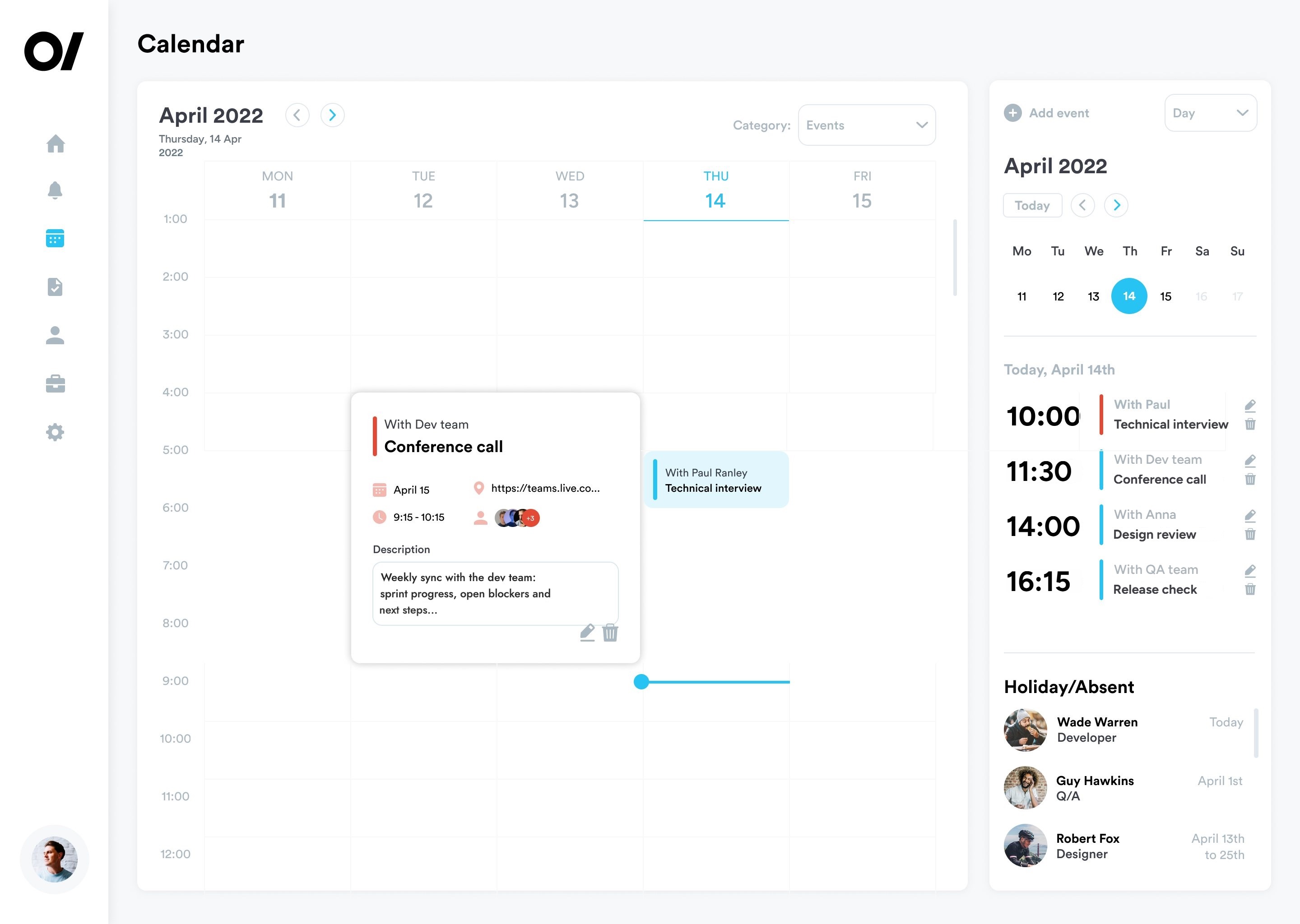
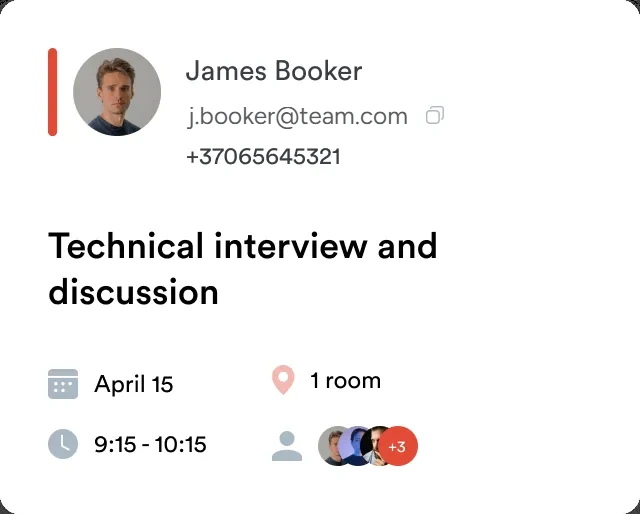
A week view with clear event cards, a mini calendar, today's agenda and who's on holiday or absent. New events are added in one simple dialog.
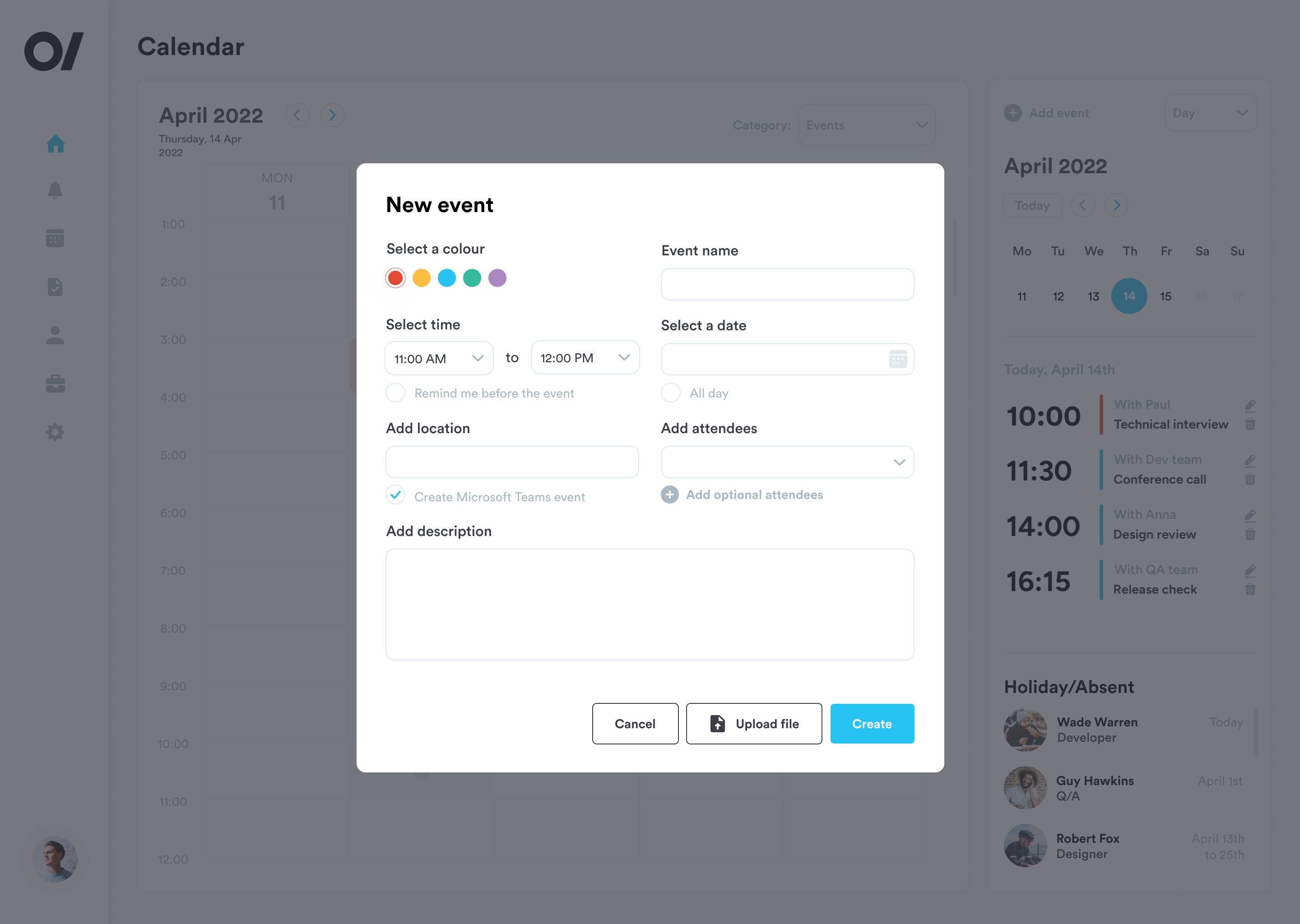
Every event type has its own colour, so even a busy week stays easy to read.
The side panel lists today's events, with the time set large, next to the mini calendar.
Holidays and absences sit right next to the calendar, so nobody plans a meeting with someone who's away.
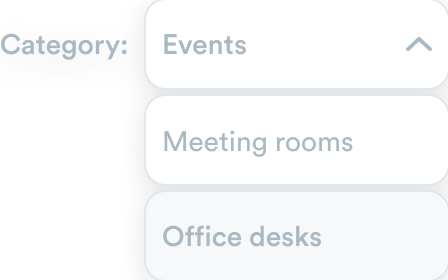
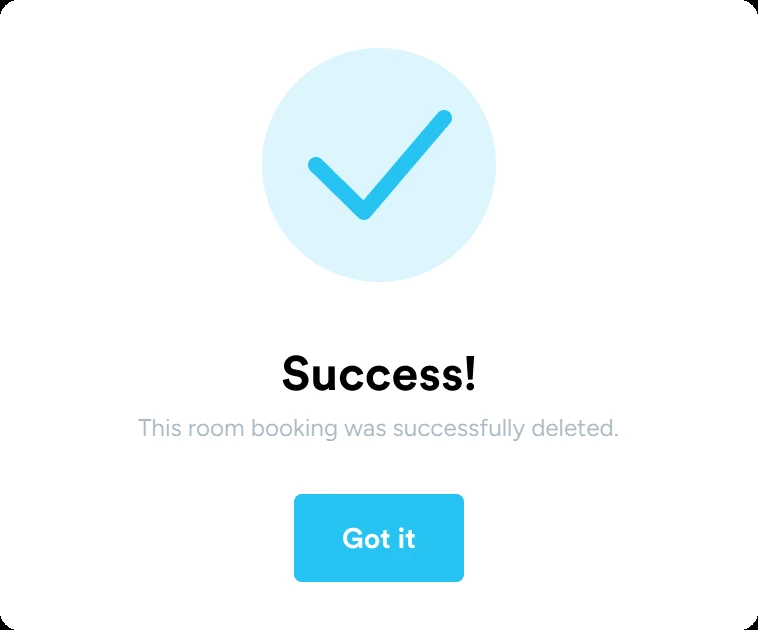
Pick one room or both and see what's free. Each room's availability has its own colour, and clear dialogs confirm, warn and stop bookings over the limit.
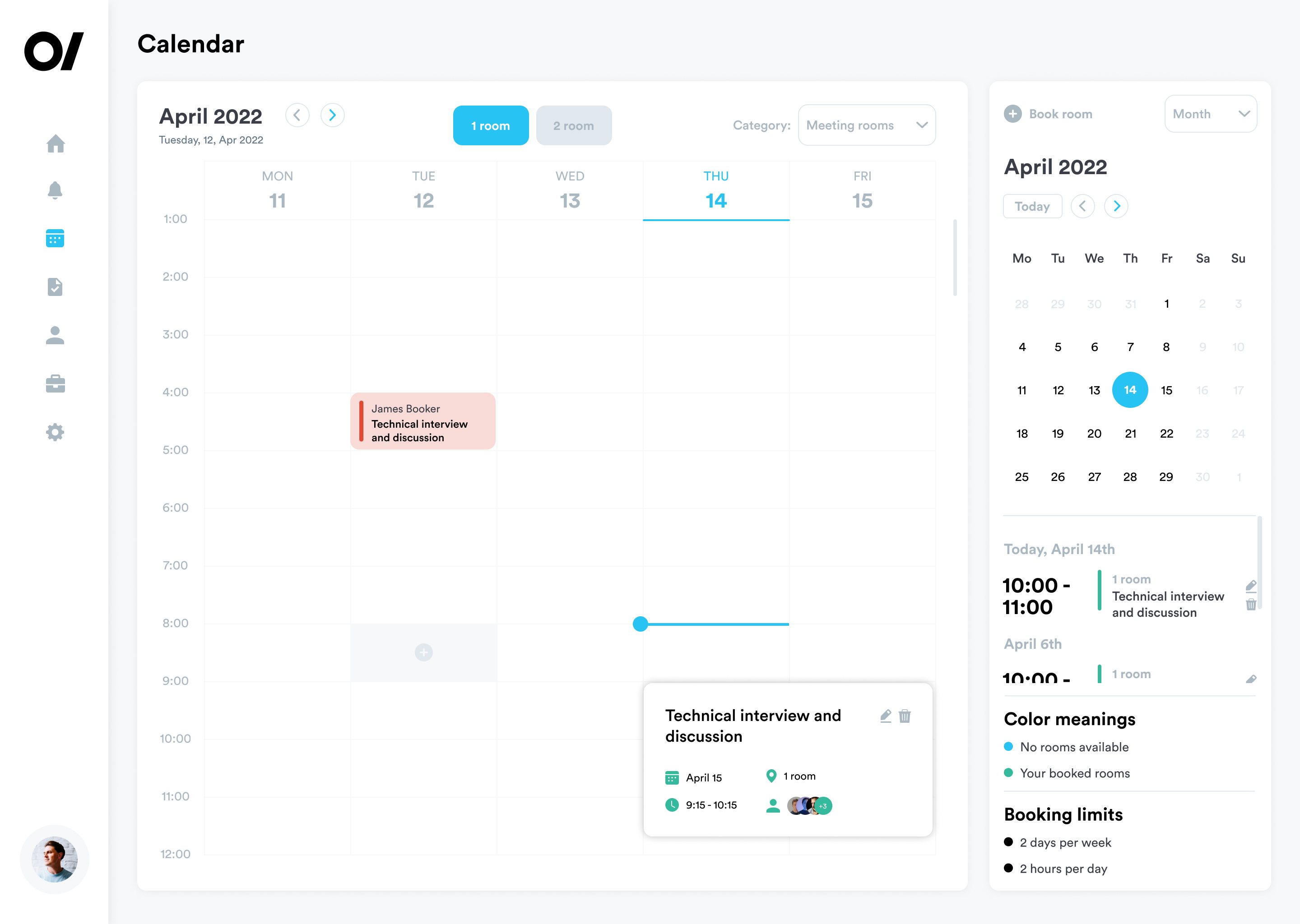
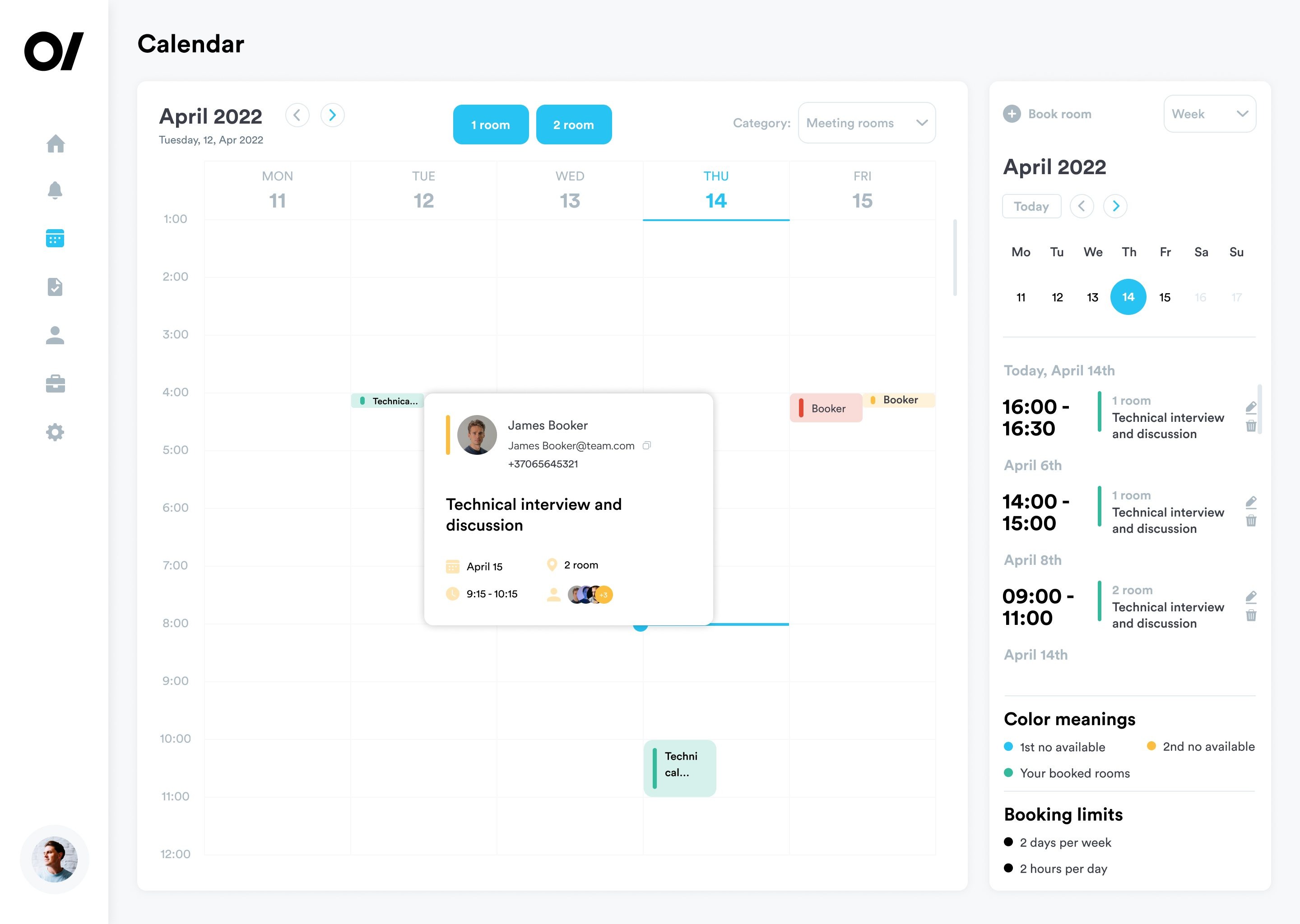
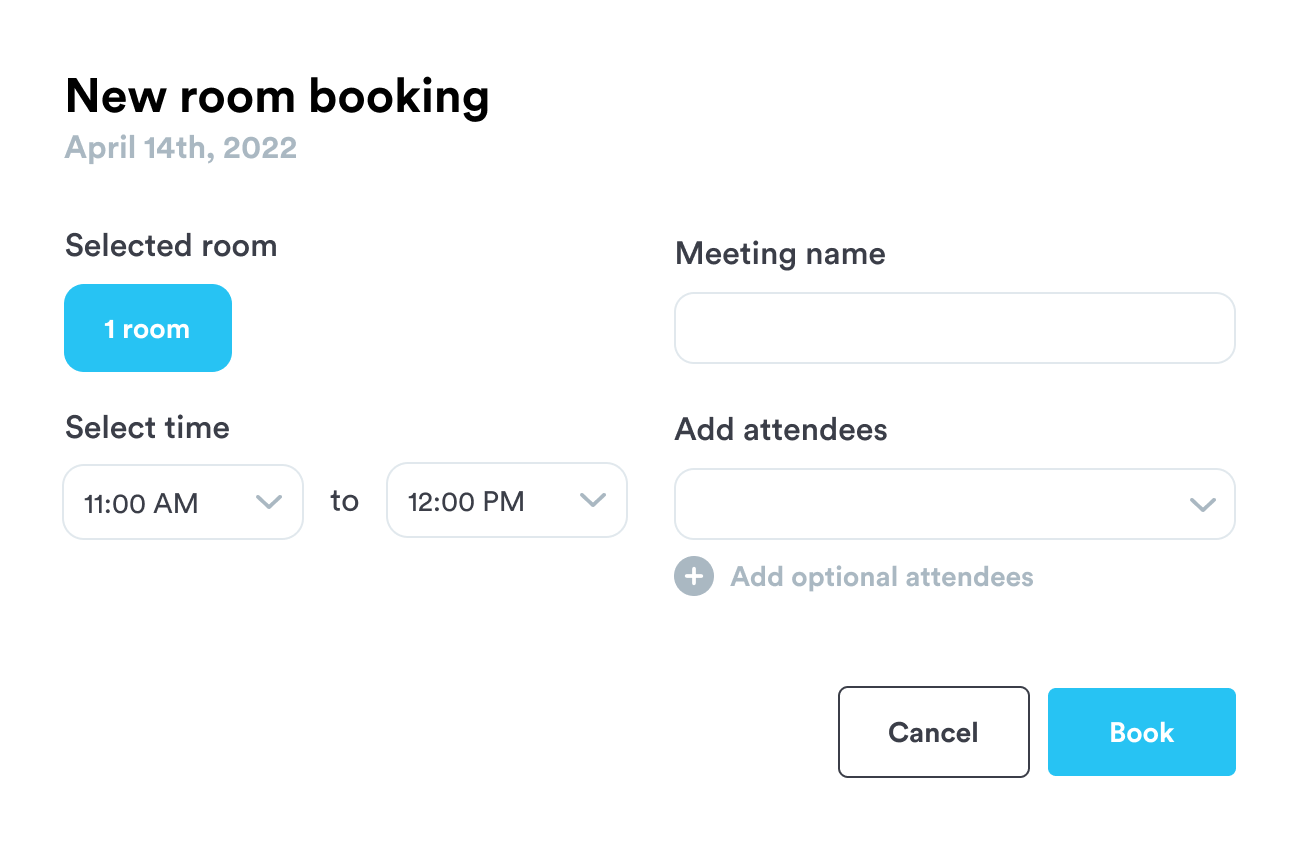
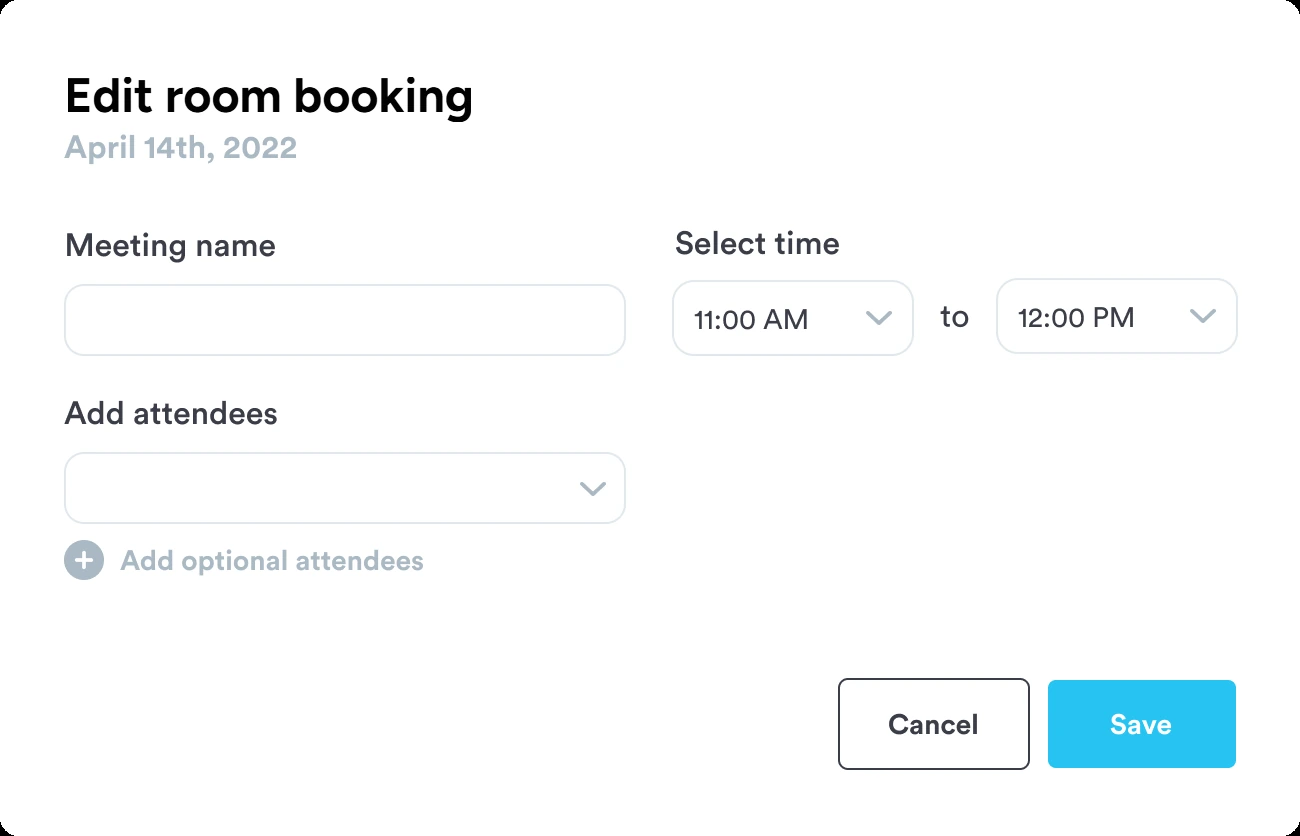
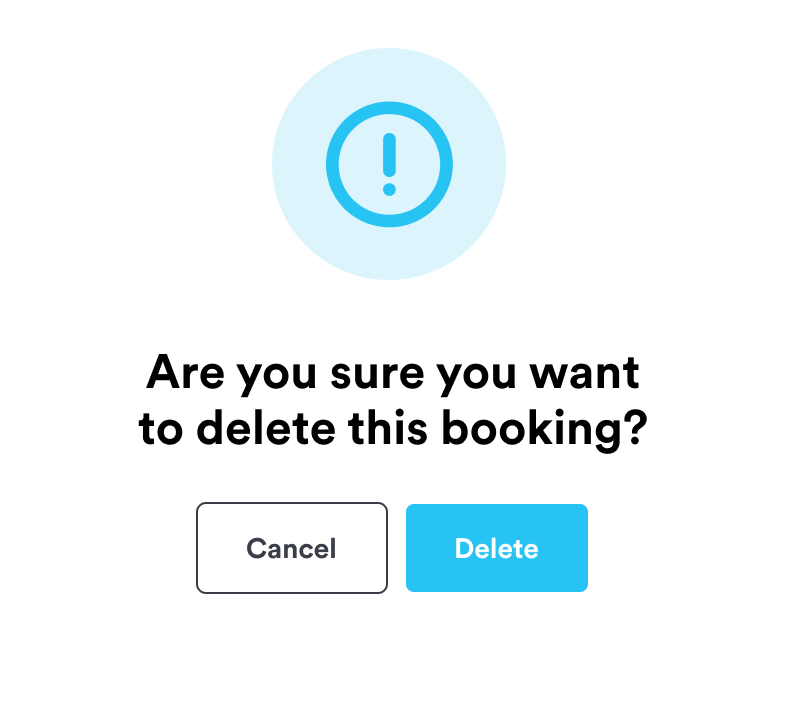
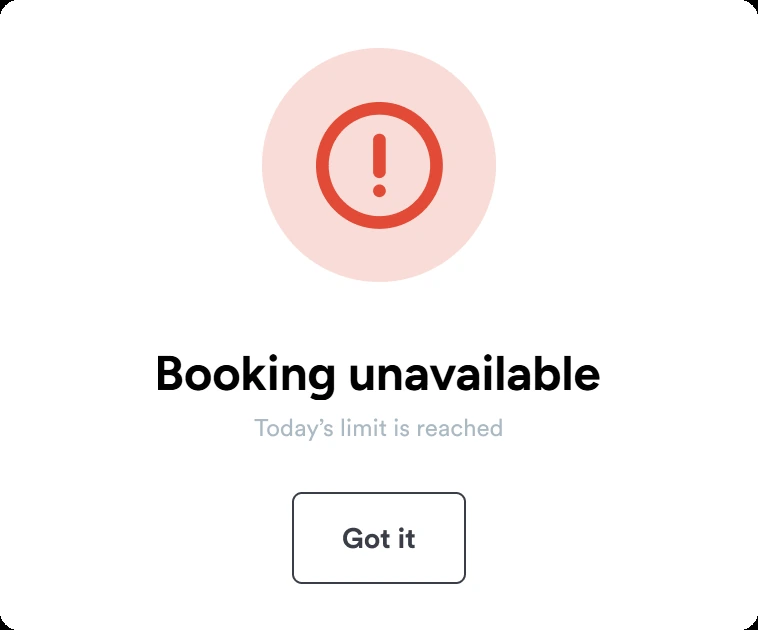
Two toggles above the week switch between the rooms, so you compare them without leaving the calendar.
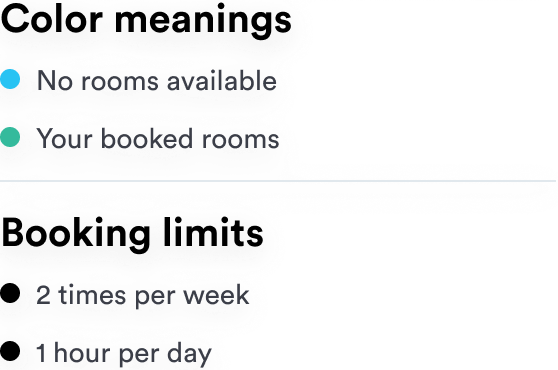
A small legend explains every colour: room not available, second room not available, your bookings.
Limits per week and per day are always visible in the side panel, so the limit message never comes as a surprise.
A desk map by day: free, occupied and your own desks in different colours. Pick a desk, choose the days, and your bookings stay listed in the side panel.
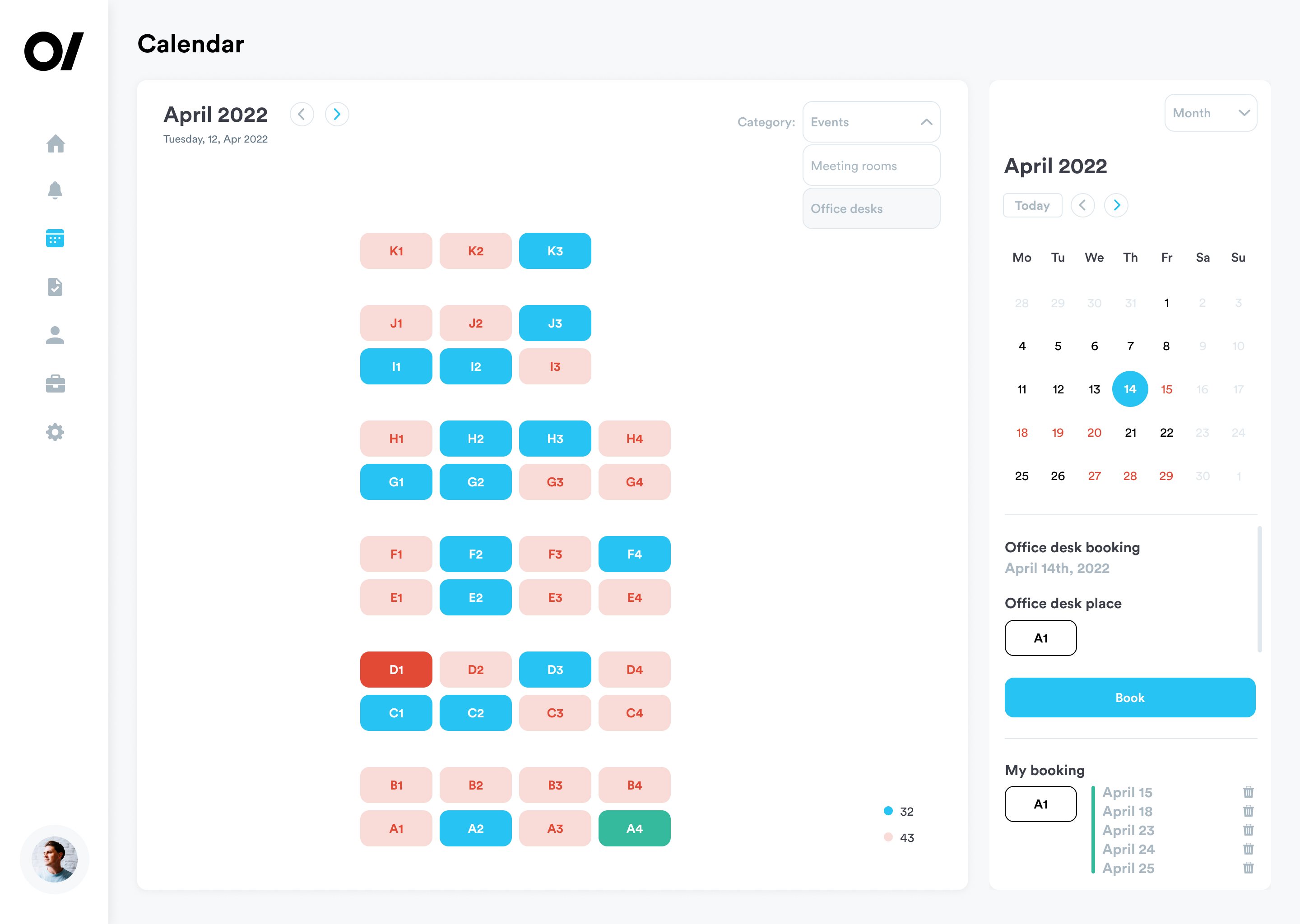
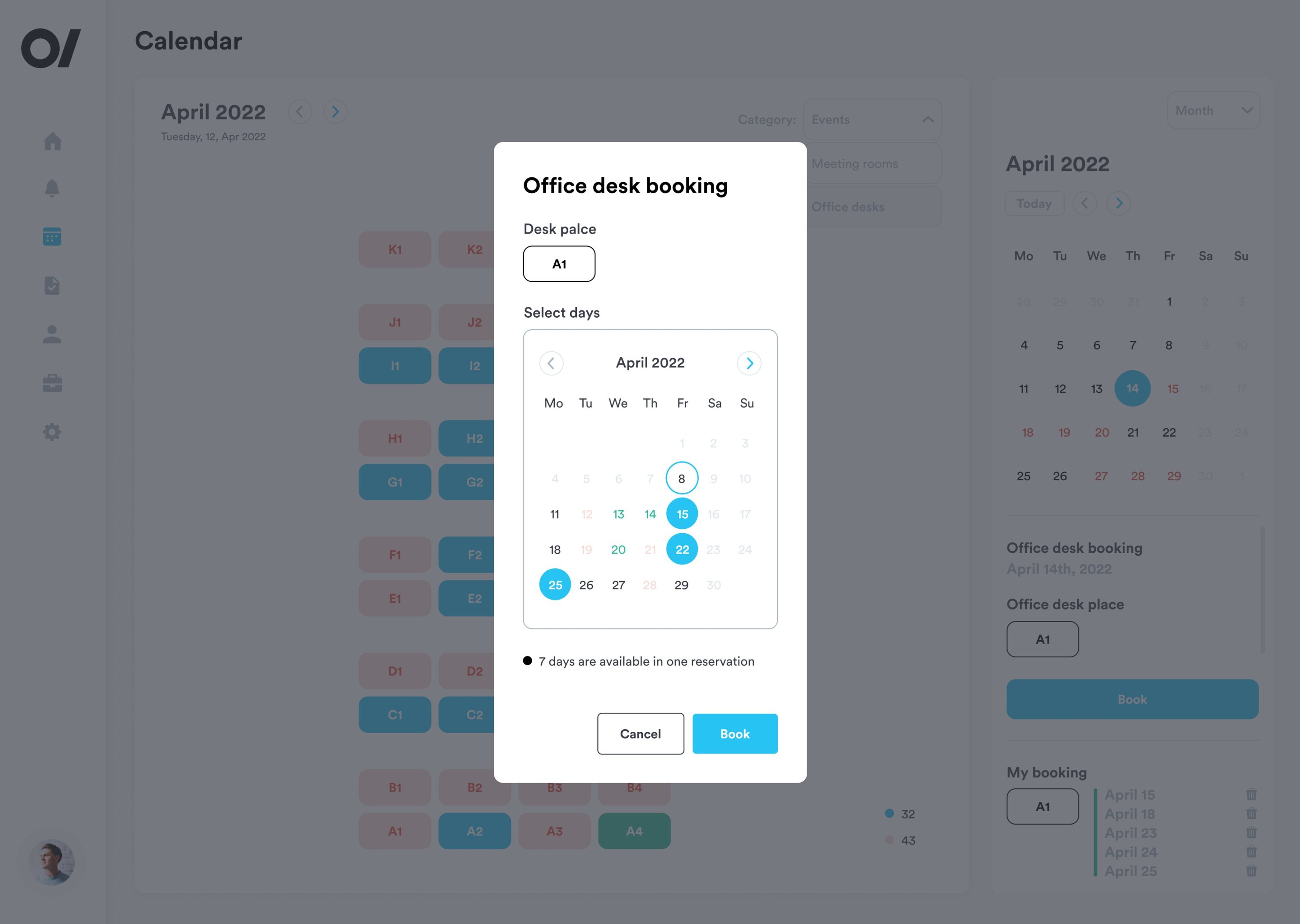
The desk map from the design, rebuilt so you can use it: switch days, click a free desk to book it, click yours to cancel.
One desk per person, per day.